Antares 10 for Windows
Antares 10 for Windows
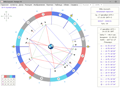
• Natal chart calculation
• Birth time rectification in manual and automatic mode
 •
• Natal chart interpretation
• Relocation
• Synastry
• Horary chart
• Finding lost articles using the
Alphee Lavoie method
• Electional astrology: choosing a favorable time for a new beginning
• Astrological forecasting
• Solar return chart
• Lunar return chart
… and much more.
The capabilities of Antares and its development prospects are discussed in our
Forum.
• Interface languages: English, Ukrainian, and Russian
• Visual adaptation for Windows 10 and higher
• Scalability
• Perpetual key applicable to any computer
Development of the program and bug fixes will only be carried out for this version.
• Windows NT (2000, XP, Vista, 7, 8, 10, 11…)
• 50 Мb of disk space
• Monitor with a resolution of at least 1024
×768 (preferably 1920
×1080)
• Internet connection at least once a week to update time zones
Antares 10 is distributed as a self
-extracting archive file. To install it on your computer, do the following:
1. Download the
Antares.10.Setup.zip file to your computer.
2. Extract the EXE file from the archive to the same folder and run it. The
"Antares 10 Setup
" window will open.
3. In the
Destination folder line, specify drive C. For this purpose, use the
Browse button or simply write
C:\
4. Click
Extract. The Antares
.10 folder with the necessary files will be created on drive C, and program shortcuts will appear on the Desktop and in the Start menu.
5. Run the program from a shortcut.
6. Select
Help → User Guide from the main menu and follow the recommendations provided there.
The proposed version of the program is a demo. Without a key, it can only calculate astrology charts for the year 1980. For details on how to obtain the key, see
here.
During installation, you may encounter troubles related to antivirus software. For example, the
Antares.10.Setup file may be blocked or deleted. This issue can be resolved easily, though it may require a few minutes of your time. Detailed instructions are provided below.
Antivirus programs can interfere with downloading and installing software on your computer. In the past, these programs relied on a complete database of all known malware, allowing any new or unknown software not in their records to pass through without issue. However, as the volume of suspicious software increased, developers adapted their security protocols. Now, antivirus programs keep a database of known safe applications, and any new software, even if harmless, may raise suspicion. This approach enhances the perceived effectiveness of antivirus software in the eyes of users, although it often creates significant obstacles for legitimate programs.
To address this problem, you can create a dedicated folder on your computer for trusted software and add it to the antivirus
Exclusions.
For example, if Microsoft Defender SmartScreen is your main antivirus, follow these steps:
1. Create a new folder on the C drive and name it, for example,
Software.
2. On the Windows taskbar, click
Start → Settings.
3. If you are using Windows 10, go to
Update & Security.
If you are using Windows 11, go to
Privacy & security.
4. Click
Windows Security → Virus & threat protection.
5. In the
"Virus & threat protection settings
" section, click
Manage settings.
6. In the
"Exclusions
" section, click
Add or remove exclusions.
7. Click
Add an exclusion, choose
Folder, locate C:\Software, select it, and confirm with
Select Folder.
Now, all programs installed in C:\Software, including Antares, will run without antivirus scans. However, use this method only for programs you trust to avoid compromising your computer's security.
If a different antivirus is installed on your PC, some of the buttons mentioned above may be inactive or missing altogether. In this case, you should add the Software folder to your antivirus Exclusions by following its specific instructions.
After creating the Software folder, the installation procedure for Antares 10 will also change slightly and will look like this:
1. Download the
Antares.10.Setup.zip file to your computer, to the C:\Software directory.
2. Extract the EXE file from the archive and save it to the same directory.
3. Run the EXE file and click
Extract in the
"Antares 10 Setup
" window. You don't need to change anything in the
Destination folder line; it will already contain C:\Software.
4. After the installation is complete, the Antares
.10 folder with the necessary files will be created on drive C, and program shortcuts will appear on the Desktop and in the Start menu.
5. Run the program from a shortcut.
6. Select
Help → User Guide from the main menu and follow the recommendations provided there.
Copyright
© Vitaliy Kryvodub
Certificate of registration of copyright No. 21442 dated July 25, 2007 ∙ SDIP ∙ Ukraine
Swiss Ephemeris Professional License No. w25.001.169 dated January 2, 2025
 Download Antares 10 for Windows
  Buy a Key